
Updated September 25, 2026
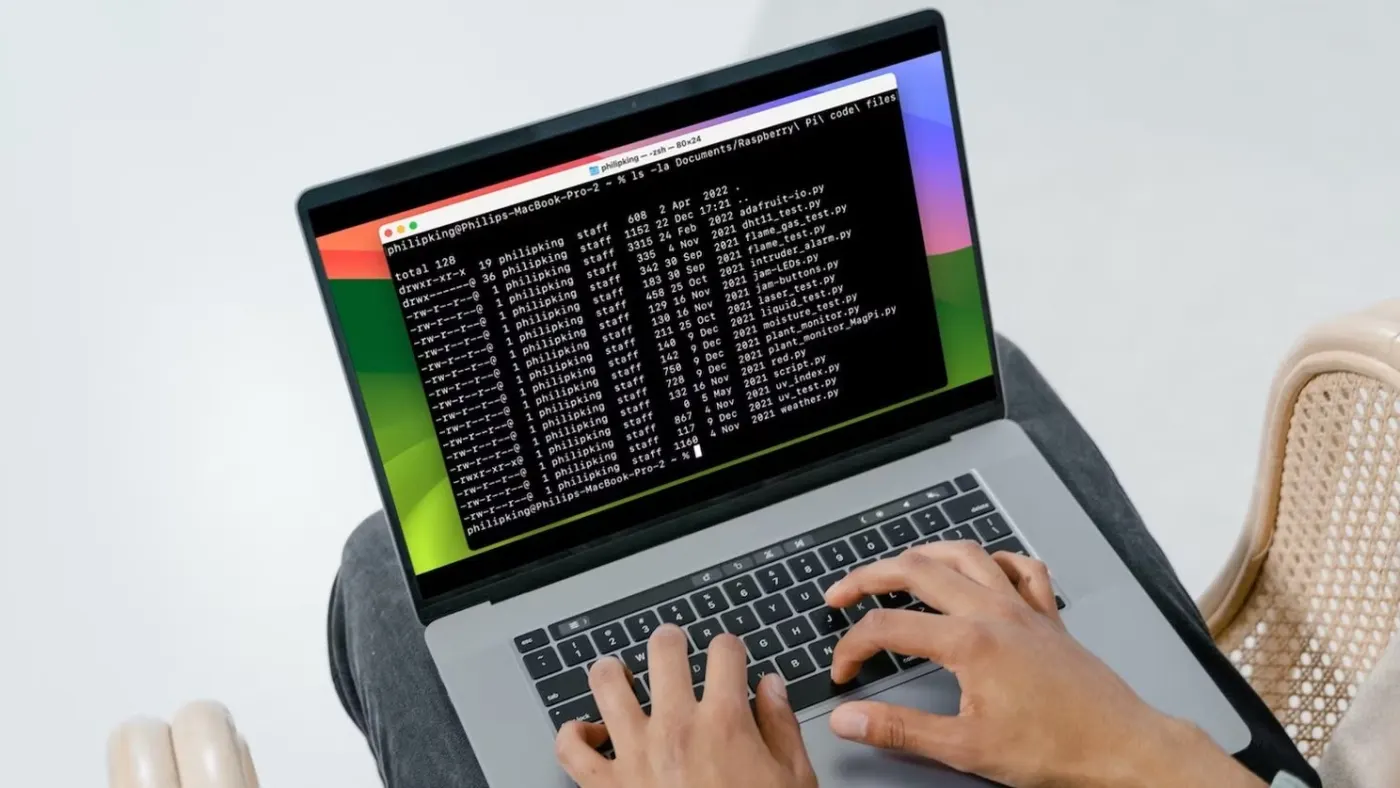
Most developers spend hours a week typing the same cd, ls, and grep commands in a terminal that looks exactly like it did the day they installed their OS. That's not a personality trait - it's wasted time. A handful of well-chosen tools can cut navigation, search, and repetitive commands down to a fraction of the keystrokes, and none of them require you to abandon your existing workflow.
What's new (September 25, 2026): Many 2026 terminal setups add Atuin alongside fzf: an open-source tool that replaces your shell's plain-text history with a searchable SQLite database and rebinds Ctrl+R to a full-screen search filterable by directory, exit code, and command duration, according to the project's own documentation. It also offers optional, end-to-end encrypted history sync across machines, so a command you ran on your laptop shows up when you SSH into a server, without the sync server operator being able to read it. Keep zoxide for jumping to directories and fzf for one-off fuzzy searches, and add Atuin specifically for digging through months of shell history for a command you know you typed once.
Advertisement
Why Your Default Terminal Is Holding You Back
The stock shell prompt tells you almost nothing useful - no Git branch, no command duration, no indication that a process failed. And the default tools (find, grep, cd) were designed decades before multi-gigabyte repos and deeply nested project folders existed. The fix isn't a new terminal app - it's layering a few modern, single-purpose tools on top of the one you already use.
Replace Your Prompt With Starship
Starship is a fast, cross-shell prompt that shows your Git branch, status, language runtime versions, and command duration - without the configuration headache of older prompt frameworks. It works in Bash, Zsh, Fish, and PowerShell.
curl -sS https://starship.rs/install.sh | sh
echo 'eval "$(starship init zsh)"' >> ~/.zshrc
Once it's running, you'll see at a glance whether you're on main or a feature branch, whether you have uncommitted changes, and how long your last command took - all of which save you from running git status out of habit.
Search Like You Mean It: ripgrep and fzf
grep works, but ripgrep (rg) is dramatically faster on large codebases and respects your .gitignore by default - so it won't waste time searching node_modules or build artifacts.
✦ Free Newsletter ✦
Never miss a story
Tools, tutorials and AI deep-dives - straight to your inbox, every week.
rg "TODO" --type js
rg -i "api_key" -g '!*.lock'
Pair it with fzf, a fuzzy finder that turns any list - command history, file paths, branch names - into an interactive, searchable menu. Bind it to Ctrl+R and you'll never scroll through shell history again:
brew install fzf
$(brew --prefix)/opt/fzf/install
Stop Typing Long Paths: zoxide
zoxide is a smarter cd that learns which directories you visit most and lets you jump to them with a partial name instead of a full path.
brew install zoxide
echo 'eval "$(zoxide init zsh)"' >> ~/.zshrc

# usage - after visiting ~/projects/techdrifting/app once:
z techdrift
After a few days of normal use, most of your navigation collapses into two- or three-letter jumps.
Advertisement
Multiplex Your Workflow With tmux
tmux lets you split a single terminal window into multiple panes and persistent sessions - so a long-running dev server, a log tail, and your editor's shell can all live side by side, and survive an SSH disconnect.
# start a named session
tmux new -s work

# split panes
Ctrl+b "   # split horizontally
Ctrl+b %   # split vertically

# detach (keeps everything running)
Ctrl+b d

# reattach later
tmux attach -t work
Aliases and Functions That Actually Get Used
Most alias lists people copy from blog posts get abandoned within a week because they don't match real habits. Start small - with the three or four commands you type most often - and build from there:
# ~/.zshrc
alias gs="git status"
alias gp="git pull"
alias ll="ls -lah"

# jump to a project and open it in one shot
function proj() {
  z "$1" && code .
}
The proj function above combines zoxide's smart jump with opening the folder in your editor - a two-step action collapsed into a single word.
Frequently Asked Questions
- Will these tools work on Windows?
- Yes - Starship, ripgrep, fzf, and zoxide all support Windows natively or through WSL, and tmux runs well inside WSL2.
- Do I need to switch shells to use these?
- No. Starship, ripgrep, fzf, and zoxide all work with Bash, Zsh, and Fish - you're layering tools on top of your current shell, not replacing it.
- What's the single highest-impact tool to start with?
- zoxide. It requires almost no learning curve, works immediately, and removes the most repetitive part of daily terminal use - typing out full paths.
Sources
Advertisement